Wan 3.0 Reference to Video

Bring images, video, and audio into one creative brief. Guide the people, products, movement, and sound of your next clip with references you choose.

Model

Reference images

Optional · up to 10 JPG, PNG, BMP, or WEBP images · 10MB each · Min 240px

Reference videos Optional

Optional · up to 5 videos · 100MB each · 15 seconds total

Reference audio Optional

Optional · up to 5 audio files · 15MB each · 15 seconds total

0 / 20,000

Aspect ratio

Resolution

Duration

5 seconds
2s30s

Sign in to create

Output Preview

Example video

Ready to generate

How Wan 3.0 Reference to Video Works

Wan 3.0 Reference to Video is a creation mode that uses uploaded visual and sound materials to guide a new clip in the Wan 3.0 workspace. Use a focused collection to communicate what should carry into the new scene, then review how the generated clip follows that direction.

  1. Step 1

    Select your materials

    Choose references that belong to the same idea. Give a person, product, visual style, movement, or sound a clear role. Remove near-duplicates and material that contradicts the intended scene.
  2. Step 2

    Assign reference roles

    Identify uploaded assets as image 1, video 1, or audio 1. Explain which qualities matter and which should stay in the background, so the brief has a clear visual and sound priority.
    Use image 1 for the jacket, video 1 for a slow camera push, and audio 1 for ambience.
  3. Step 3

    Set the output

    Choose your model tier, 480p, 720p, or 1080p, and a duration from 2–30 seconds. With video references, check the shared 30-second duration budget before generating.
  4. Step 4

    Review the result

    Check the returned clip for recognizable details, movement, and sound. Change one reference role at a time when refining a scene. The Wan 3.0 workflow guide covers the wider creation process.

Create with Image, Video, and Audio References

Combine the types of material your scene needs. Wan 3.0 Reference to Video accepts these three input groups; each group has its own limits.

Up to 10 images

Use complementary views for appearance, wardrobe, product details, or a visual palette. Keep the collection coherent: ten competing looks can communicate less clearly than three carefully selected views.

Up to 5 videos

Use clips to guide movement, camera behavior, or pacing. Each file must be 1–15 seconds, and all video references together must total 15 seconds or less.

Up to 5 audio files

Add a sound cue, ambience, or musical texture that fits the scene. Each file must be 1–15 seconds; the combined audio duration must also stay within 15 seconds.

Keep Characters Consistent with Wan 3.0 Reference to Video

A recognizable subject starts with a consistent set of materials. Wan 3.0 Reference to Video can use those materials as guidance, while your review determines whether the result fits the character or product.

Keep appearance coherent

Choose clear views of the same person with compatible clothing, hairstyle, and lighting. Describe the details that should carry through the scene. Conflicting outfits or heavily obscured faces make your intended identity harder to communicate.

Protect product details

Use views that show the product silhouette, finish, and defining features. Inspect fine text, labels, reflections, and proportions after generation; exact consistency is not guaranteed. The Wan 3.0 generator brings the available creation workflows together.

Guide Motion, Style, and Sound with References

Separate the role of each material so motion, style, and sound support the same scene. References should explain a creative choice without asking every file to control everything.

Choose one movement

Select a clip with the camera path or subject movement you need. State whether the important element is the slow camera push, walking pace, or restrained gesture, rather than every object in that clip.

Set a shared visual style

Use a compatible palette, setting, and lighting direction across your materials. Identify whether the style reference should guide color, atmosphere, or surface treatment while the subject references guide appearance.

Give sound a purpose

Decide whether audio should supply ambience, rhythm, or a specific sound cue. Audio is enabled by default. Listen to the returned result instead of assuming the supplied sound will be reproduced or synchronized exactly.

Wan 3.0 Reference to Video Examples

Watch a real generated result and compare it with the appearance input used. The planning cards below suggest separate scenarios with multiple materials; they are creative briefs, not generated results. Asset numbers refer to upload order.

Generated example

Wan 3.0 Reference to Video example: coffee in a garden

The result carries a similar cup shape and beige color into a garden scene with a round wooden table. Steam changes and the framing shifts slightly sideways. This take used one appearance image, with no video or audio references; it demonstrates visual guidance rather than an exact reproduction.
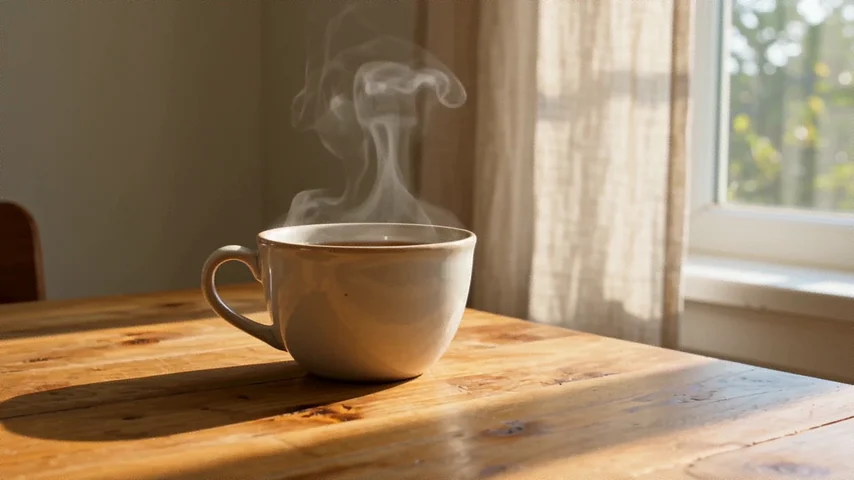
Appearance input
Appearance input showing a beige ceramic cup on an indoor wooden table beside a window
  • Standard
  • 480p
  • 5s
  • 16:9
  • 1 appearance image

Prompt used

Use image 1 for the ceramic cup shape, beige glaze, and warm morning light. Place this cup on a small outdoor cafe table beside a leafy garden. The camera makes a slow sideways move as steam rises. Audio: gentle outdoor ambience and birdsong, no dialogue.

Creative example

Scenario example · Character in a bookshop

2 appearance images · 1 movement video (5s) · 1 ambience track (6s) · 10s output at 720p

  • Appearance
  • Camera movement
  • Ambience

Use images 1 and 2 for the reader's appearance and green jacket. Use video 1 for a slow camera push between the shelves. The reader pauses to examine a book. Use audio 1 for quiet indoor ambience; keep the scene calm and the jacket recognizable.

Creative example

Scenario example · Product on a studio set

3 product images · 1 motion video (4s) · 1 sound texture (5s) · 12s output at 1080p

  • Product details
  • Lighting
  • Sound

Use images 1, 2, and 3 for the bottle shape, amber glass, and dark cap. Use video 1 for a gentle camera arc. Place the bottle on a warm gray studio surface with soft side lighting. Use audio 1 for a restrained background texture, keeping the product the focus.

For Wan 3.0 Reference to Video, reference video also affects the available output duration and credit estimate. Compare credit plans and review the generator estimate before submitting either scenario.

Use Cases for Wan 3.0 Reference to Video

Use references when a project needs more specific visual or sound direction than a written brief alone can communicate. Keep the materials organized by their role in the shot.

Connected character scenes

Plan a short story around a recurring person and wardrobe. Reuse clear appearance views for each scene, change only the scene direction, and compare faces, clothing, and proportions before selecting clips for the sequence.

Product campaign variations

Supply complementary product views when exploring different settings for the same item. Keep its shape and finish as the common direction, then inspect labels and surfaces across the returned versions before choosing campaign material.

Creative direction tests

Combine a visual palette, a camera movement, and an ambience cue to test a proposed scene. Give each material one purpose so collaborators can judge the lighting, pacing, and sound as separate creative choices.

FAQ

What is Wan 3.0 Reference to Video?

It is a creation mode that uses uploaded images, videos, or audio to guide a new clip. Assign each asset a role, such as appearance, camera movement, or sound. References provide direction; they do not guarantee an exact reproduction of every detail.

How many references can I upload?

Upload up to 10 images, 5 videos, and 5 audio files. Video references must total no more than 15 seconds, and audio references have their own 15-second total. Select useful material rather than filling every available slot.

Can I make a 30-second video with references?

Output settings range from 2 to 30 seconds. When you attach video references, their combined duration, rounded up to a whole second, plus the output duration must be no more than 30 seconds. For example, 8.2 seconds of video references leaves up to 21 seconds for output.

Will my character or product look exactly the same?

Clear, compatible references can guide appearance, clothing, colors, and product shape. Fine details can still change. Inspect faces, logos, proportions, and continuity in the returned clip before choosing it for a campaign or combining it with other shots.

Which resolution and sound settings are available?

Choose 480p, 720p, or 1080p. Audio generation is enabled by default in this workflow, with optional audio references to guide sound. Review the completed clip to judge how its sound, movement, and visual details work together.

What should I check before generating?

Check that you have permission to use the uploaded material, remove conflicting references, confirm the duration limits, and review the credit estimate. Changing resolution, output length, or reference video can change the cost shown by the generator.

Do I need image, video, and audio references together?

No. Upload at least one valid reference asset, but you do not need to fill all three groups. Appearance images can supply visual direction without a motion clip. Add video or audio when it communicates a specific movement or sound that matters to the result.

Which reference file formats are supported?

Use JPG, PNG, BMP, or WEBP for images, MP4 or MOV for videos, and MP3 or WAV for audio. Each image can be up to 10 MB, each video 100 MB, and each audio file 15 MB. Duration and image dimension limits apply separately.

What if two references suggest different styles?

Choose which material should guide the overall look, then narrow the role of the other asset or remove it. For example, use one scene for lighting and a separate view for clothing. A clear priority is more useful than asking incompatible looks to control the same detail.

How should I prepare references for several connected shots?

Reuse a coherent set of appearance materials and record the wardrobe, colors, and features that matter across the sequence. In Wan 3.0 Reference to Video, generate and review each shot separately. Compare recognizable details before editing the clips together; repeated inputs do not guarantee identical results.

Build your next scene with references

Choose the materials that matter, give each one a role, and review your settings before creating.

Start creating