Wan 3.0 Image to Video

Wan 3.0 Image to Video turns photos into up to 30-second 1080p clips with audio. Upload a first frame, add an optional ending, and create your video online.

Model

First frame · Required

Last frame · Optional

0 / 20,000

Aspect ratio

Resolution

Duration

5 seconds
2s30s

Sign in to create

Output Preview

Example video

Ready to generate

Turn a Still Image into a 30-Second Video

Wan 3.0 Image to Video is an online photo animation tool that turns a still composition into a moving scene on Wan 3.0. Your image supplies the opening view; your motion description explains what should happen next. Choose a short reveal or give a slower scene up to 30 seconds to unfold.

Start with your photo

Use a product shot, a landscape, or a portrait with clear lighting and room for movement.

Describe the movement

Ask for a slow camera push, drifting clouds, or a gentle turn. One main action makes the intended motion easier to judge.

Choose your delivery

Set the length, aspect ratio, and resolution for your destination. Preview before making another version.

How Wan 3.0 Image to Video Works

For a walkthrough of the settings, read the Wan 3.0 getting-started guide.
  1. Step 1

    Upload the first frame

    Add the image you want to open the video. A last frame is optional when the ending matters.
  2. Step 2

    Describe what changes

    Explain the subject action, camera movement, and any sound. Focus on movement rather than repeating every visible detail.
    The camera glides toward the vase as sunlight shifts across its surface. Soft room ambience.
  3. Step 3

    Set duration and quality

    Choose 2–30 seconds and 480p, 720p, or 1080p. Check the credit estimate before you generate.
  4. Step 4

    Generate and review

    Watch the start, middle, and ending. Keep the strongest version or adjust one instruction for another attempt.

Animate Photos with Natural Motion

For Wan 3.0 Image to Video, motion should fit the scene already visible in your photo. Start with a small, believable change, then increase the movement if the first result needs more energy.

A subtle portrait

Try a gentle head turn, a relaxed blink, or hair moving in a light breeze. Keep the camera steady while you assess the face.

A product reveal

Use a slow push toward a bottle or a small camera arc around a shoe. Leave enough space around the item for the movement.

A living landscape

Let water ripple, foliage sway, or clouds drift. One steady camera move can add depth without making every part of the scene busy.

Control the First Frame

The first frame is required. Crop before uploading so the subject, surroundings, and space for movement support your intended shot.

Prepare a clear starting image

Keep the subject in focus and avoid clipped edges. Check product labels and small details both before generating and in the finished clip.

Match the intended composition

Choose an output ratio that suits your source. Keep essential details away from the edges if the framing changes.

Create with First and Last Frames

Add an optional last frame to give Wan 3.0 Image to Video an ending to work toward. Pick images of the same scene with a plausible change between them; the pair guides the transition, rather than guaranteeing every moment in between.
  1. Step 1

    First frame: establish the shot

    For example, begin with a closed gift box centered on a table, with enough space above the lid.
  2. Step 2

    Last frame: define the ending

    Finish with the box open in a similar composition. Describe the lid lifting slowly and the camera remaining still.

Generate 1080p Image-to-Video with Audio

Choose Wan 3.0 Image to Video at 1080p for your final version, or use a lower resolution while exploring a shot. Duration, resolution, and model selection affect the credit estimate; see current pricing before planning a batch.

Give the movement enough time

A quick reveal and a slow landscape need different lengths. Extend toward 30 seconds when the action needs room, while keeping the motion description focused.

Describe sound that fits

Audio is enabled during generation. Ask for soft waves beside a beach or a quiet room around a product shot, then listen for how well the sound matches the action.

Wan 3.0 Image-to-Video Examples

Compare a real Wan 3.0 Image to Video result with its input frame, motion description, and settings. The creative cards below are additional ideas for your own photos, rather than generated sample videos.

Generated example

Wan 3.0 Image to Video example: a steaming coffee cup

The cup stays on the wooden table as the steam changes shape and the view moves gradually closer. This take used the input frame shown below with no last frame. Play the clip to review its movement and generated sound together.
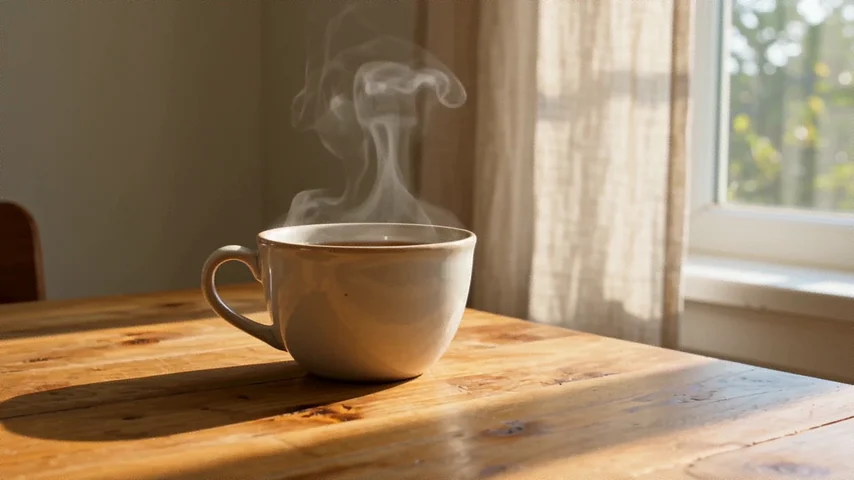
Input frame
Input frame of a beige coffee cup with steam on a wooden table beside a window
  • Standard
  • 480p
  • 5s
  • 16:9
  • First frame only

Prompt used

Steam rises gently from the cup while the curtain shifts in a light breeze. The camera slowly moves closer at table height. Keep the cup resting on the table. Audio: quiet room ambience and distant birdsong, no dialogue.

Creative example

Skincare product reveal

Suggested input: a bottle on a clean tabletop.

  • Product photo
  • Slow push

The camera slowly pushes toward the bottle. Soft light shifts across the glass while the bottle stays still. Keep the label facing forward. Quiet room ambience.

Creative example

Coastal morning

Suggested input: a wide beach photo.

  • Landscape
  • Gentle motion

Small waves roll onto the sand and retreat. Distant clouds drift slowly. The camera remains level with a gentle forward move. Soft surf and a light coastal breeze.

Creative example

Window-side portrait

Suggested input: a well-lit portrait near a window.

  • Portrait
  • Steady camera

The person gently turns toward the window and takes a relaxed breath. A few strands of hair move in the breeze. Keep the camera steady and the lighting soft.

Use Cases for Wan 3.0 Image to Video

Choose a photo with the composition your project needs. These applications start from your own still shot and use controlled movement to give it a new role.

Product page clips

Give a tabletop product shot a slow camera move for a product page or a short announcement. Keep the item readable, and check labels and edges before using the result alongside purchase information.

Travel and location posts

Add moving water, drifting clouds, or swaying trees to a location photo. Match the output ratio to your post and keep architectural details in view while checking the finished motion.

Portrait introductions

Use a small turn or a relaxed breath to create a short portrait introduction. Start with a steady camera and review the face through the whole clip before adding titles in your editor.

Tips for Better Image Animation

Treat the first result as a version to inspect. Explore the Wan 3.0 generator for more workflows and output settings.

Change one thing at a time

Keep the image and settings steady while adjusting the motion. This makes it easier to see which instruction improved the result.

Check the whole clip

Inspect faces, hands, product edges, and labels throughout the video. A clean opening frame alone does not establish a usable result.

Keep the action achievable

Begin with one subject action and one camera direction. Simplify conflicting movement before increasing duration or adding a more ambitious ending.

FAQ

How do I animate a photo with Wan 3.0?

Upload your photo as the first frame, describe subject and camera movement, and choose duration, resolution, and aspect ratio. Generate, then review before changing one setting at a time.

Does Wan 3.0 Image to Video need a last frame?

No. Only the first frame is required. Add an optional last frame when you have a specific ending composition in mind. Closely related start and end images give the transition a clearer direction.

Can I make a 30-second 1080p clip?

The generator offers durations from 2 to 30 seconds and 480p, 720p, or 1080p output. Choose the duration and resolution in the tool before generating, and check the displayed credit estimate for your settings.

Does Wan 3.0 Image to Video include audio?

Audio is enabled for generation. Describe suitable ambience or sound effects alongside the motion, such as waves or soft footsteps. There is no separate audio switch in this tool; review the generated soundtrack with the picture.

Which image files can I upload?

Use a JPG, PNG, BMP, or WEBP image up to 10 MB, with both dimensions at least 240 pixels. A sharp, well-lit source with a clearly visible subject is a better starting point than a small, heavily compressed image.

Which aspect ratio works best for my photo?

Choose 9:16 for a vertical post, 16:9 for a wide player, or 1:1 for a square layout. Adaptive, 4:3, and 3:4 are also available. Prepare a crop with room around the subject; changing the output ratio can affect how much of the scene stays visible.

What should a Wan 3.0 Image to Video motion description include?

Describe what changes over time: the subject's movement, the camera path, and the sound. The uploaded photo already establishes the starting appearance. A short direction such as 'the camera moves closer as the curtain sways' is easier to assess than several unrelated actions.

Why does my product label change during the clip?

Small text and fine edges can shift as new frames are generated. Try a steadier camera, a clearer source, and less subject movement. Inspect the label throughout the result; a sharp source photo does not guarantee exact lettering in every frame.

How can I make my photo animation less static?

Name a visible change instead of only a mood: water ripples, a person turns, or the camera moves closer. Change one motion instruction before increasing several settings. Keep the action plausible for the original composition and leave enough time for it to develop.

How can I test a motion idea before making a longer clip?

Choose a shorter duration and compare the displayed estimate at 480p or 720p. Check the movement, subject shape, and framing before selecting 1080p or a longer take. Each new generation has its own estimate; changing the settings does not upgrade an existing clip.

Give your photo its next moment

Upload a first frame, choose the movement, and create your next clip with Wan 3.0 Image to Video.

Start creating